Code Server / VS Code (Open OnDemand)
Overview
This guide explains how to launch Code Server (VS Code in the browser) through the Open OnDemand portal.
Step 1: Start a Code Server Session
Choose Code Server (or VS Code) from the Interactive Apps list.
Configure CPU/memory and walltime then click Launch.
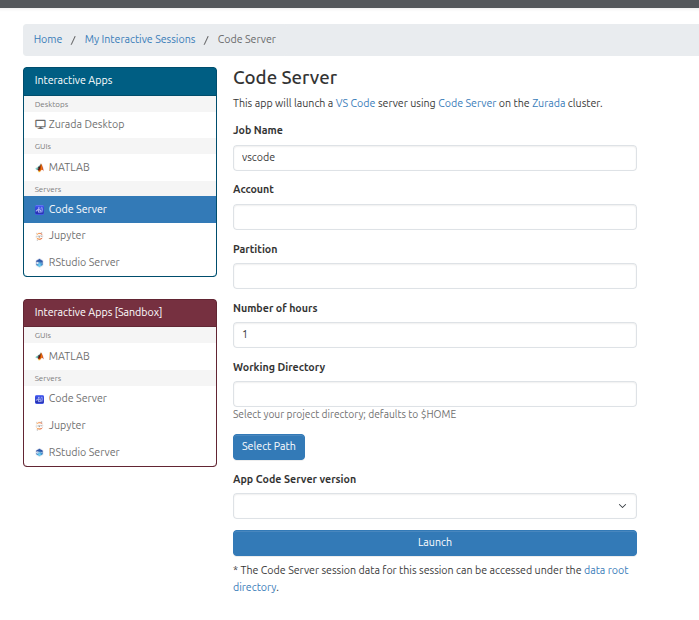
Figure 1: Example Code Server session card in Interactive Sessions.
Step 2: Connect to the IDE
When the session status shows Running, click the blue Connect button on the session card to open the Code Server IDE in a new tab.
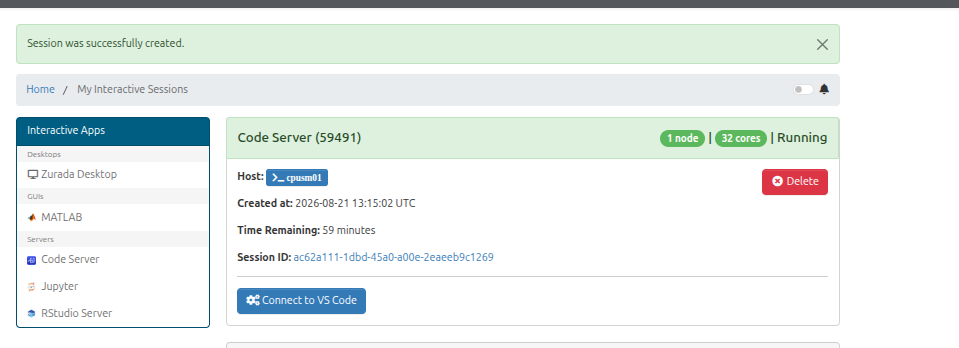
Figure 2: Click the Connect button to open the Code Server IDE in a new tab.