MATLAB (Open OnDemand)
Overview
Use MATLAB through the OOD Interactive Apps interface when licensed nodes are available. Interactive MATLAB sessions are useful for visualization and debugging.
Step 1: Navigate to MATLAB
On the top navigation bar, click on Interactive Apps.
Select MATLAB from the drop-down menu (if available).
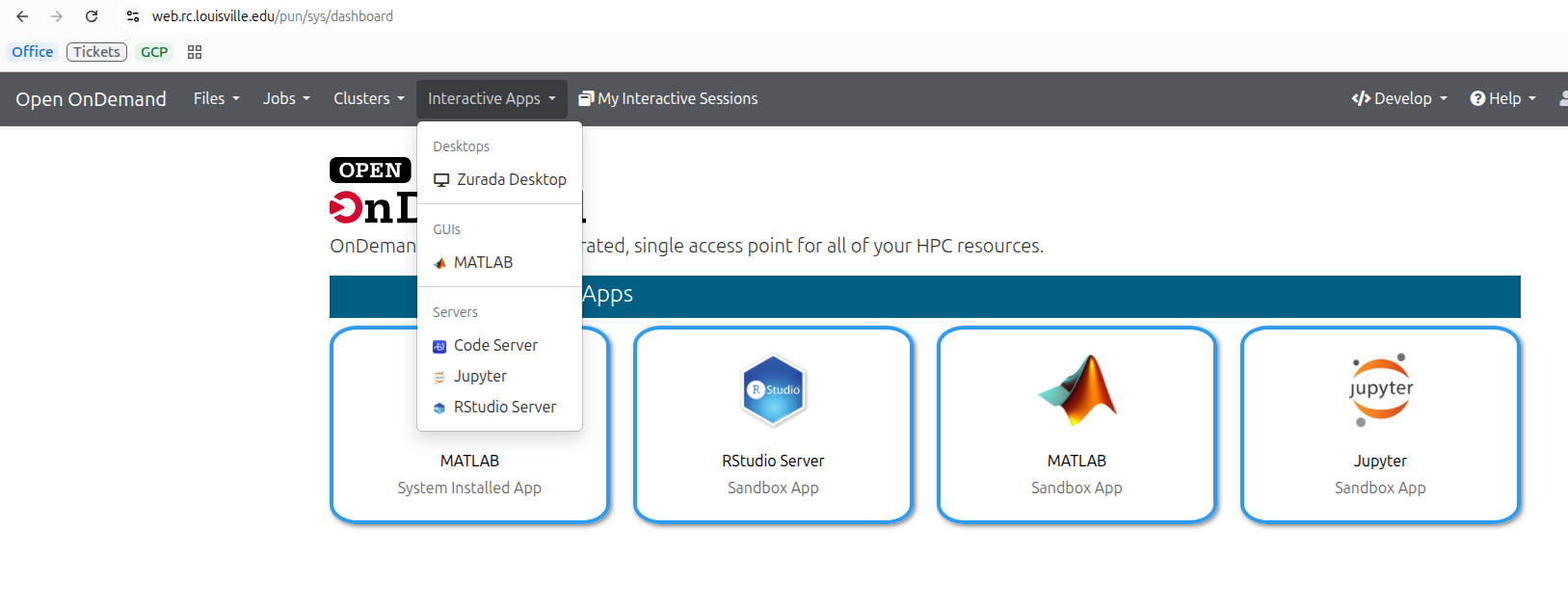
Figure 1: Selecting MATLAB from the Interactive Apps menu.
Step 2: Configure Job Options
Fill in the form parameters according to your resource requirements:
Parameter |
Description |
|---|---|
Job Name |
A custom identifier for your session (e.g., |
Project / Account |
Your ulink id.. |
Partition |
Choose the compute partition. |
Number of Hours |
Total runtime requested for the interactive session (1–24 hours). |
Number of Cores |
Number of CPU cores requested for computation. |
Working Directory |
Starting directory for your MATLAB workspace. Defaults to |
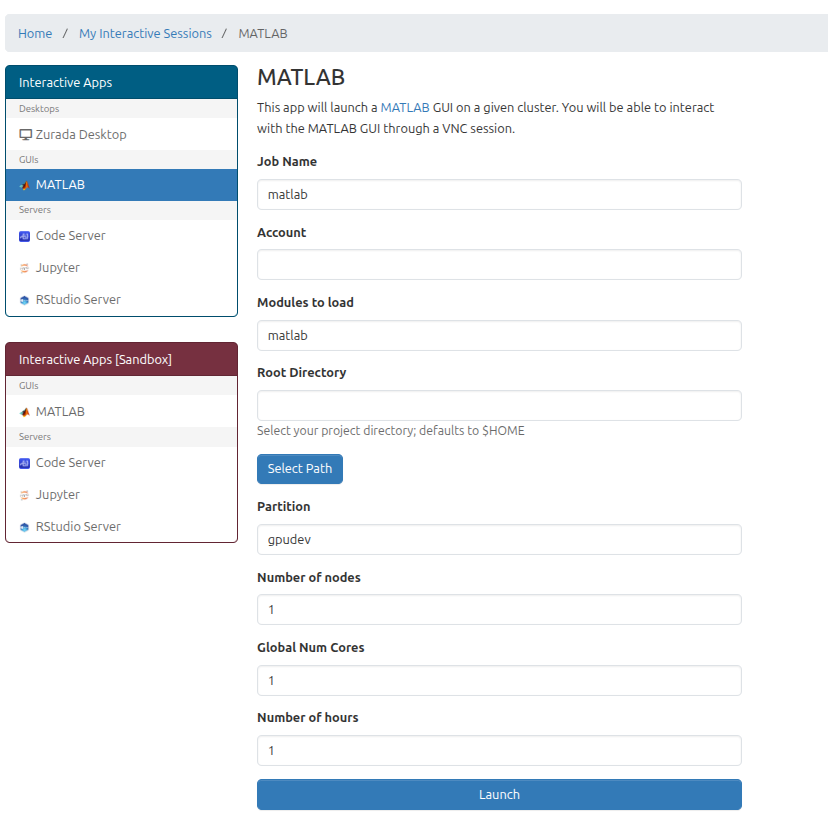
Figure 2: Interactive session submission form.
Step 3: Connect to the Running Session
After clicking Launch, you will be redirected to the Interactive Sessions card view.
The session card will initially display Queued or Starting.
Once resources are allocated, the status will change to Running.
Click the blue Connect button to open the MATLAB environment in a new tab.
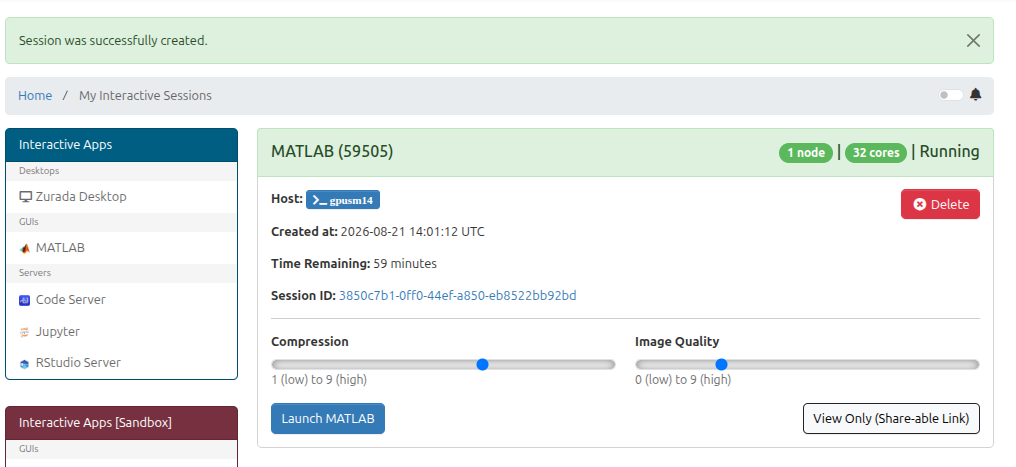
Figure 3: Example MATLAB session card in Interactive Sessions.
Step 4: Terminate the Session
When you have finished your work, close your interactive session to release compute resources for other users:
Return to the Open OnDemand Interactive Sessions page.
Click the red Delete button on the session card.
Figure 4: Deleting an active interactive session.